Change your password or sign out of all devices
Set or change your own password, and sign out on every phone, till and browser at once.
Who can do this: Owner, Manager and Cashier
Each person has a My account page. There you can set or change your own password. You can also sign out on every phone, till and browser at once.
Open My account
- On the till, press your name at the top of the screen.
- In the admin app, open the menu with your name, then press My account.
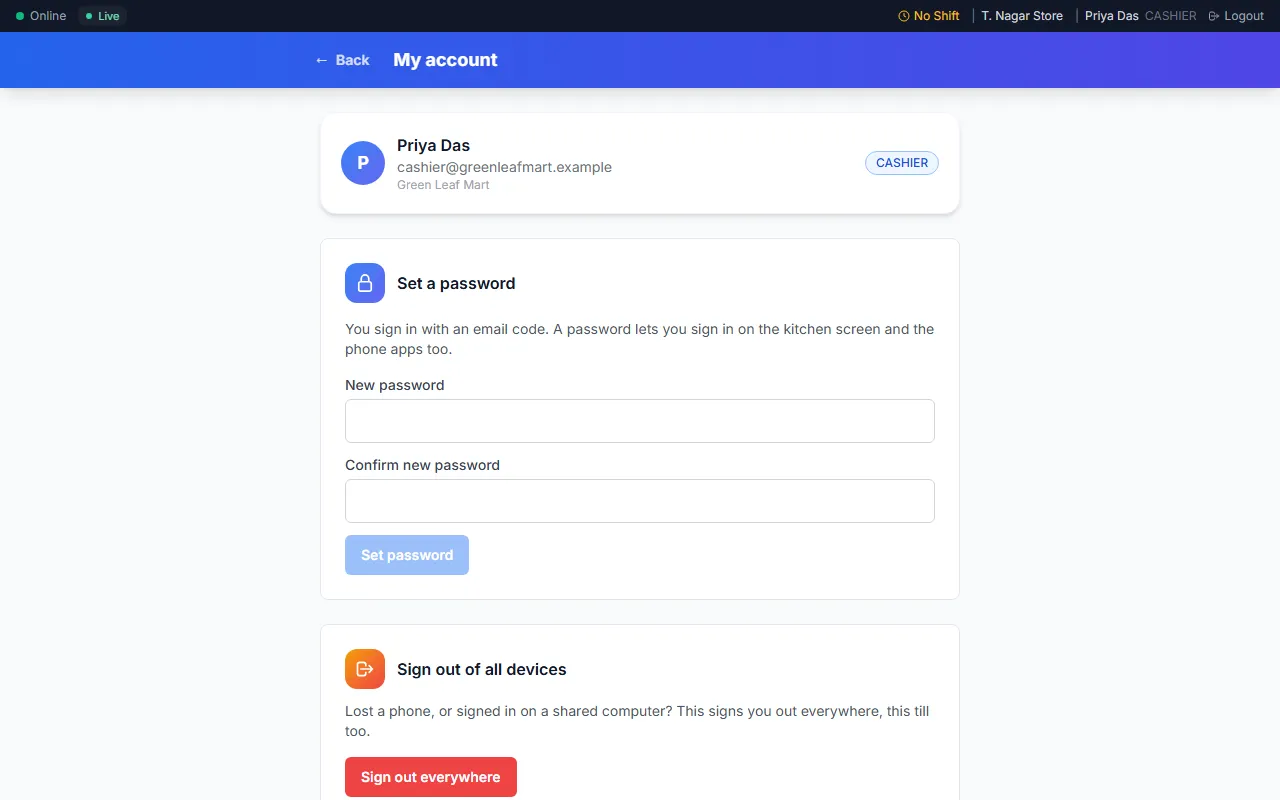
Set your first password
You sign in with a code from your email, so you may not have a password yet. Then the page says Set a password.
- Type a new password in New password.
- Type it again in Confirm new password.
- Press Set password.
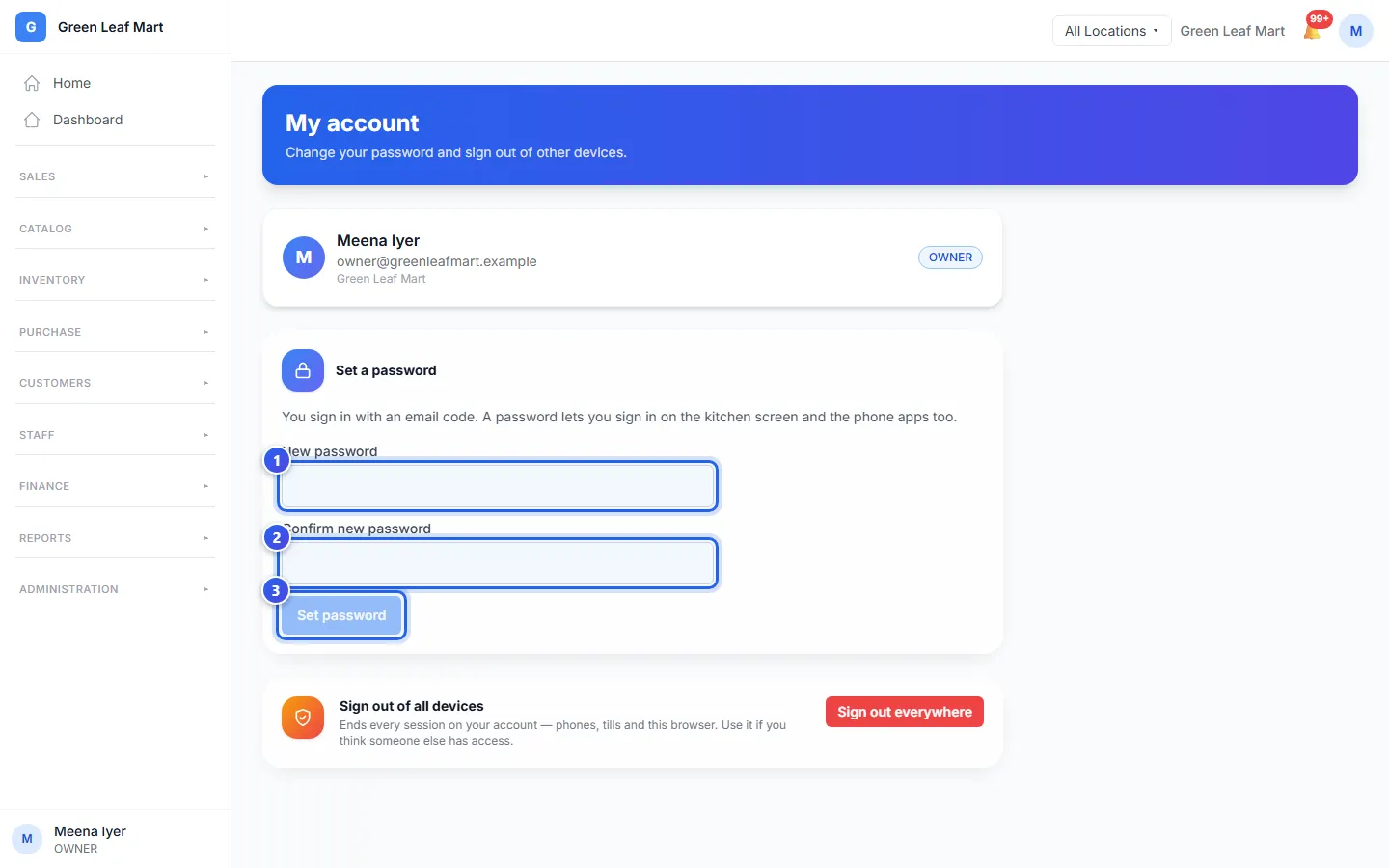
A password lets you sign in on the kitchen screen and the phone apps too.
Change your password
- Type your old password in Current password.
- Type a new password in New password.
- Type it again in Confirm new password.
- Press Change password.
You stay signed in here. Every other phone, till and browser is signed out. If the old password is wrong, the page tells you, and nothing changes.
Sign out of all devices
Did you lose a phone, or sign in on a shared computer? Press Sign out everywhere. Then press Sign out everywhere again to say yes. Orio360 signs you out everywhere, here too.
Related help
Still need help?