Choose what each location sells
Add a product once, then choose which locations sell it and what each one charges.
Who can do this: Owner and Manager
For shopsYour business has one product list. You add each product once. Then you choose which locations sell it. Each location keeps its own stock of the product, and it can have its own price.
On these pages, the admin app calls your locations Stores.
See which locations sell a product
- In the menu, open Catalog and press Master Catalogue.
- Type part of a name in Search name, SKU or barcode….
- Look at the Stores count of the product. Stores 1 / 2 means 1 of your 2 locations sells it.
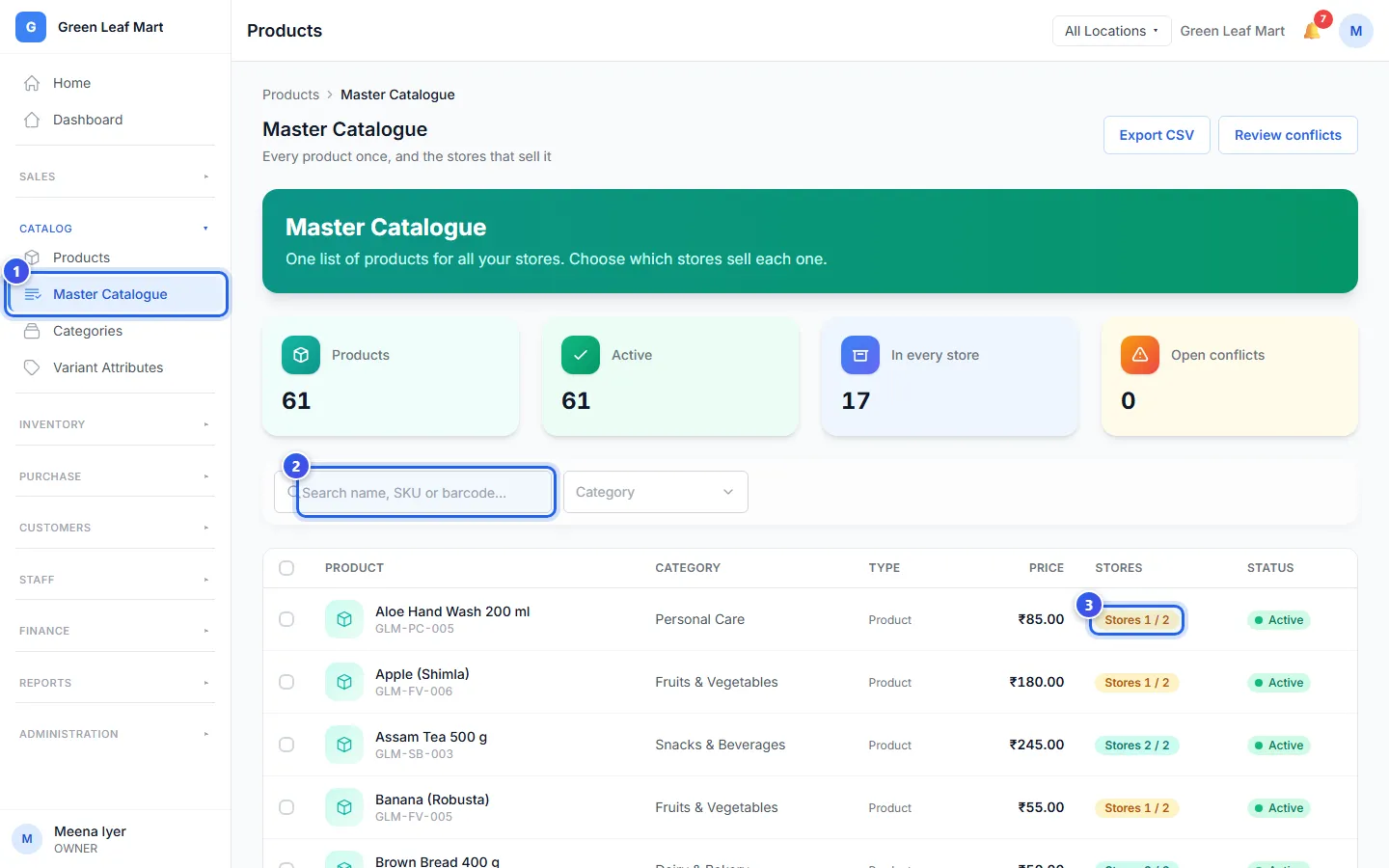
The cards at the top count your products. In every store counts the products that every location sells.
Turn a product on at a location
- Press the Stores count of the product. You can also open the product and press the Stores tab.
- Find the location in the list.
- Turn on its switch. It now says Sold here.
A location that is new to the product starts with 0 in stock, at the main price. To get stock there, move some from another location, or buy it from a supplier. Turn the switch off to stop selling it there. The till at that location then stops selling it. A scan there says it is not sold at this store. Your other locations still sell it.
A product with sizes or colours brings all its variants with it. You can then turn one variant off at that location.
Do you want to change many products at once? Tick them in the list, and press Sell at stores. Tick the locations, or All stores. Then press Sell here. Stop selling works the same way.
Give one location its own price
- On the Stores tab, find the location.
- Type the new price in Own price.
- Press Save. The price now has the Own price label.
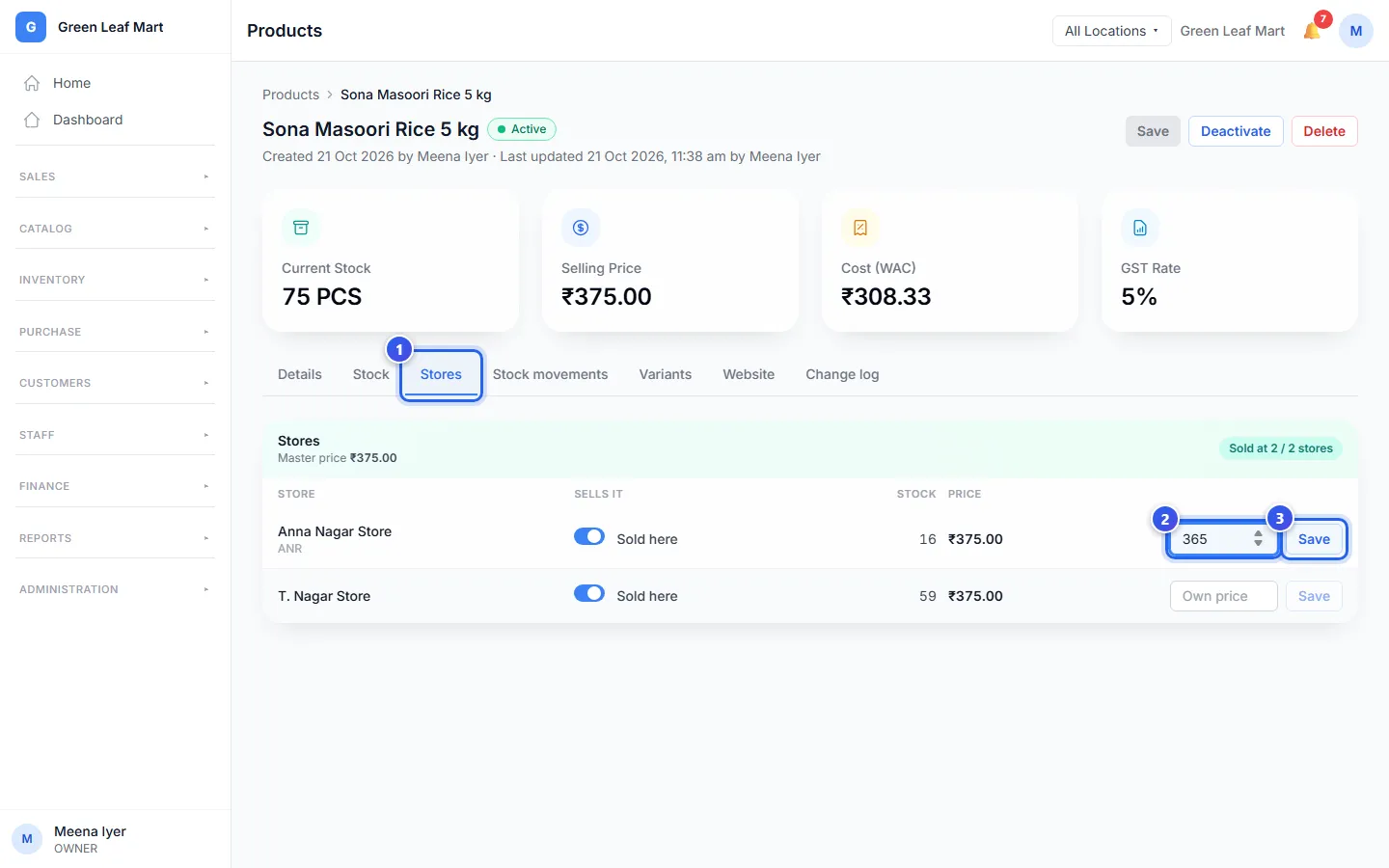
The main price shows at the top, next to Master price. To go back to it, press Reset.
Each location's row shows the main price as Base. It also shows what the product Cost that location, and the Margin. The margin is the part of the price you keep as profit.
Set a lowest margin
An Owner can set a lowest margin for the business.
- Open Settings and press Price Margin.
- Type a number, like 25.
- Press Save.
When a location's price leaves less than this, its row says Below 25% minimum. You can still save the price. It is only a warning.
What a Manager can do
A Manager can turn products on and off at their own locations. They can also give those locations their own price. Other locations show Sold here or Not sold, with no switch.
Only an Owner can change the name, the barcode, the category or the GST rate. A change to these reaches every location that sells the product.
Fix products with different details
Two locations may have the same product code, but a different name or barcode. Orio360 keeps one for the product list, and asks the Owner which one is right.
- On Master Catalogue, press Review conflicts. Only an Owner sees this button.
- Read each card. Master is the detail in the product list. This store is the detail at that location.
- Press Use master to give that location the list's detail. Or press Use this store to use the location's detail at every location.
Is a size or a colour missing at one location? Press Add the missing variants here to add it. Or press Keep this store's set to leave it out.
Barcodes used by more than one product
Some older products may share a barcode, like ABC123 and abc123. The Review conflicts page lists them. Press Open on one product and give it a new barcode.
Related help
Add a product
Put a new item in your list so you can sell it.
Find and change a product
Search your product list and change a price, a name or another detail.
Add many products from a file
Fill in our sheet and add many products at once.
Add a location
Add another shop or branch with its own address and code.
Still need help?